▤↗
Keep the good finds.
Bring long articles, inspiration, and useful references into your research workflow with a full-page screenshot.
The whole page. The whole picture.
Capture entire webpages in Google Chrome with Snap Entire. Save full-page screenshots quickly and easily, including content beyond the visible screen.
Find Snap Entire on Chrome ↗For the pages worth keeping.
And the details worth sharing.
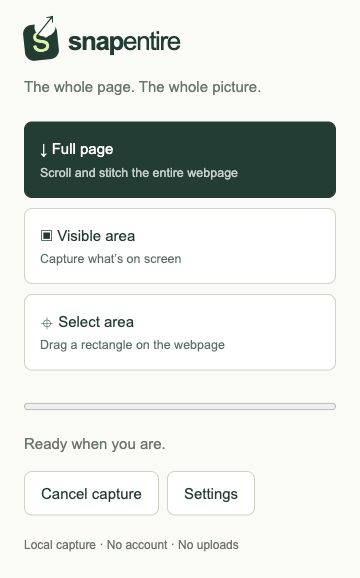
A website screenshot extension for research, design reviews, and everyday reference. Capture the whole page when one screen leaves out the details.
Bring long articles, inspiration, and useful references into your research workflow with a full-page screenshot.
See how a layout flows from header to footer. Share the whole page when a cropped image leaves too much out.
Keep a visual reference of a webpage for your projects, planning, or documentation. Less piecing screenshots together.
From an open tab to a full-page screenshot. A simple addition to the way you already browse.
Find the Chrome extension ↗Install Snap Entire from the Chrome Web Store and pin it to your toolbar for easy access.
Open the webpage, let its content load, and select the extension to begin your capture.
Use the extension’s controls to save your capture, then bring it into your next project or conversation.
Edit your capture right in the Snap Entire preview. Crop the frame, point out a detail, or add context before exporting.
Learn how to edit a screenshot ↗Choose Edit in the capture preview. Crop, draw arrows, add text, or highlight the details that matter. Undo and redo as you work.
Use Redact to cover content with an opaque black block. Check the exported image before sharing. The original remains in local storage until the capture is deleted.
Apply edits to save the current part. Downloads and clipboard use the saved image. Edit each part separately, or choose Restore original part to start again.
Get to know full-page screenshots.
A full-page screenshot brings the content of a long webpage into one image, including the content below the visible browser window. It is useful for saving articles, reviewing designs, and documenting a page.
Find Snap Entire in the Chrome Web Store, install the extension, and pin it to your toolbar. Open the webpage you want to save, then select the extension to start a capture. Follow the controls in the extension to save your result.
Open Snap Entire on a regular webpage and choose Full page. Keep the source tab active while it scrolls and stitches the page. Review the result before exporting. Our scrolling screenshot Chrome guide explains how to handle sticky headers and delayed images.
Chrome restricts extensions on some pages, including browser settings and the Chrome Web Store. Pages with infinite scrolling, embedded content, or changing animations may also need extra care. Let images load before starting your capture.
Close pop-ups, dismiss cookie banners, and wait for images and fonts to load. For pages with lazy-loaded content, scroll through the page first, then return to the top before capturing.
Learn the workflow, fix scrolling issues, and choose the right screenshot tool.
Crop, annotate, highlight, and redact before sharing.
Capture modes, preview, and export formats.
Two methods and a practical review checklist.
Handle long pages, sticky headers, and delayed images.
A comparison built around your actual workflow.
Your next great find deserves the whole frame.
Find Snap Entire on Chrome ↗