How to Screenshot an Entire Webpage in Chrome
Updated · By Snap Entire
A desktop screenshot usually stops at the edge of your screen. To include a long webpage, use a browser capture tool. Here are two workflows, plus a checklist for avoiding incomplete results.
Before you capture
Decide whether you need a visual record or a document with searchable text. A screenshot preserves the rendered appearance; it does not preserve links or turn the page into an editable document. Open the exact page state you need, close menus and cookie banners, and avoid including sensitive account details.
Method 1: use Snap Entire
This workflow keeps the capture controls in your toolbar and gives you a preview before export.
- Install Snap Entire and pin it using Chrome’s Extensions menu.
- Open your webpage and scroll through once if images load only as they enter the viewport. Return to the top.
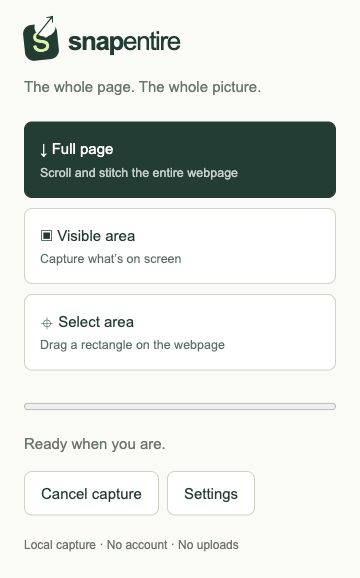
- Click Snap Entire, select Full page, and leave the source tab active while it runs.
- Inspect the preview. For a multipart capture, check every part.
- Choose Download image for PNG or JPEG, or Download PDF for all parts in an A4 document.
Method 2: use Chrome DevTools
For an occasional capture, Chrome includes a screenshot command in its developer tools. Open the Chrome menu, choose More tools, then Developer tools. With DevTools focused, open its Command Menu using Control+Shift+P on Windows/Linux or Command+Shift+P on macOS. Type “screenshot” and choose “Capture full size screenshot”. Check the downloaded result. This workflow does not use Snap Entire.
Check the result before sharing
Inspect the bottom of the page, small text, and places where sticky headers or animations appear. Look for missing images and repeated sections. If the result is incomplete, let the page settle and retry. A screenshot captures rendered content; it cannot retrieve content a virtualized page never loaded.
When printing to PDF is a better fit
If readable document text matters more than preserving the exact screen layout, try Chrome’s Print dialog and its Save as PDF destination. Websites can use print-specific styles, so inspect the print preview: menus, backgrounds, and page breaks can differ from the screen.
DevTools reference: Chrome Command Menu documentation and Chrome for Developers screenshot tutorial.