Full Page Screenshot Chrome Extension
Updated · By Snap Entire
A full-page screenshot keeps a webpage’s layout together, including content below the visible window. Snap Entire brings capture, preview, and local export into your Chrome toolbar.
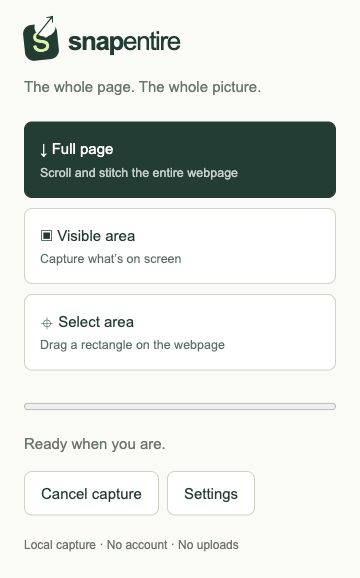
Choose the right capture mode
Full page scrolls and stitches the main page or a supported internal scrolling viewer. Visible area captures the current viewport. Select area lets you draw a rectangle; press Escape to cancel selection. Use Full page for a complete design review, Visible area for a quick status reference, or Select area for one detail.
Make your first full-page capture
Open a normal webpage after installing and pinning Snap Entire. Chrome internal pages and the Chrome Web Store cannot be captured.
- Let the layout and images settle. Dismiss overlays you do not want in the image.
- Open Snap Entire and choose Full page.
- Keep the source tab active. Do not resize the window or scroll during capture.
- Review the resulting preview at fit-to-width or zoom in to check text and image joins.
PNG, JPEG, or PDF?
PNG preserves capture pixels and suits text-heavy layouts. JPEG uses a white background and adjustable quality, which can reduce file size for photographic pages. PDF places the capture on A4 portrait pages; text is an image rather than selectable document text. Very tall captures can split into parts: image export saves the selected part, Download all images creates a ZIP, and PDF includes all parts in order.
Keep control of saved captures
The extension source stores captures locally in your Chrome profile using IndexedDB and stores preferences in Chrome storage. Delete a capture from its preview when you no longer need it. Downloaded files are separate copies that you manage on your device. Capture only information you intend to keep or share.